How to Setup iOS Shortcuts Automation for SMS Forwarding
First, Download Forward SMS
Download Forward SMS on App Store
Setup Shortcut Automation for Forward SMS
The Shortcuts app on iOS is a built-in Apple tool that allows users to create custom automations to perform tasks on their devices more efficiently.
Step 1: Open Shortcuts App
-
Open Shortcuts App

-
Tap Automation tab
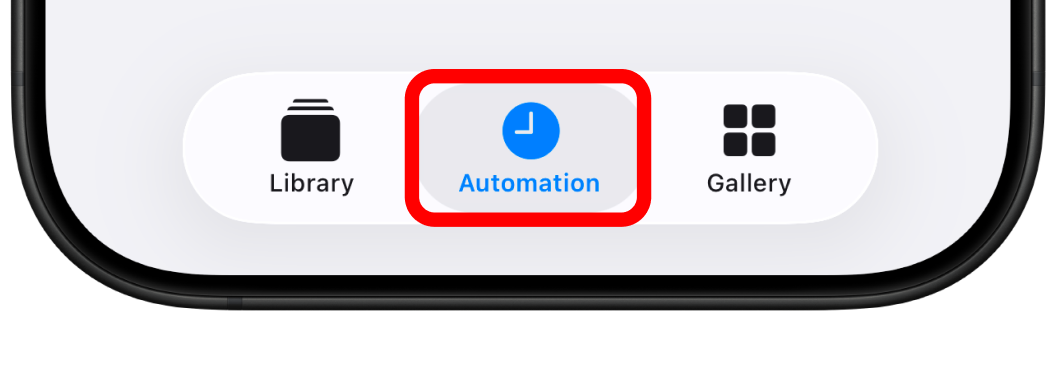
Step 2: Create New Automation
-
Tap New Automation or + button
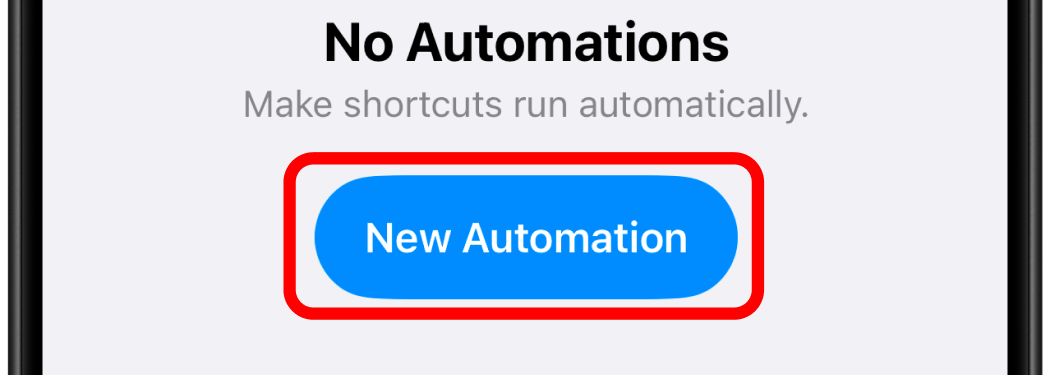
-
Select Message as trigger
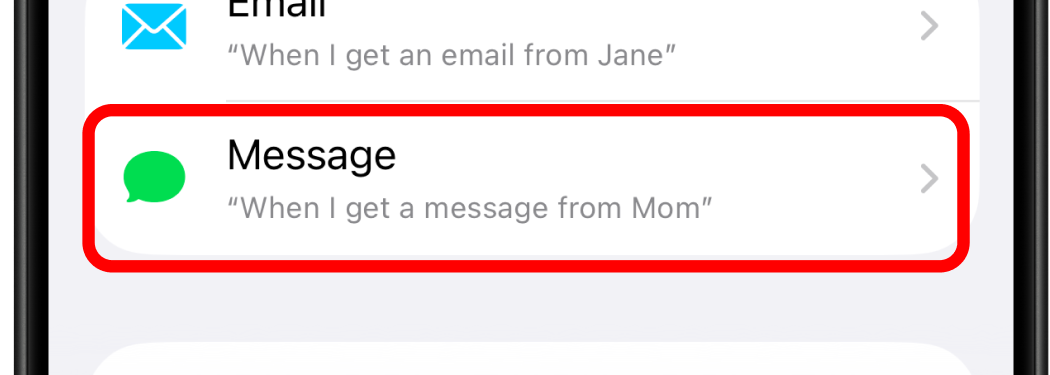
Step 3: Configure Message Filter
-
Set Message Contains → single space (tap spacebar once) to forward all texts
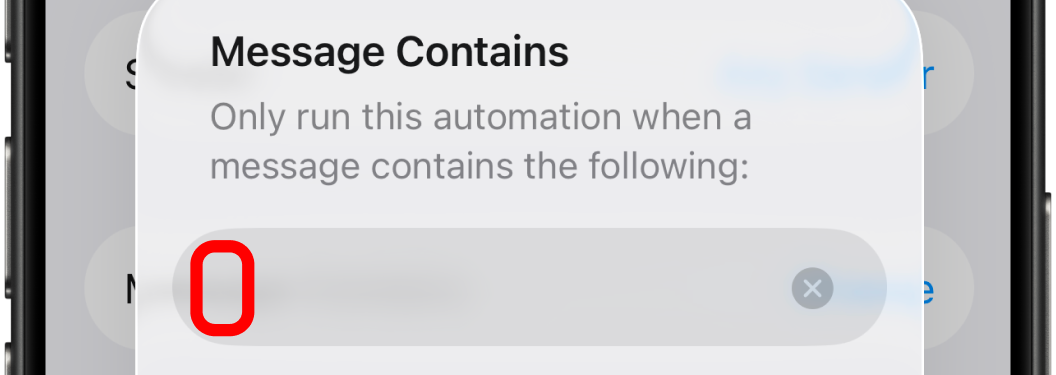
-
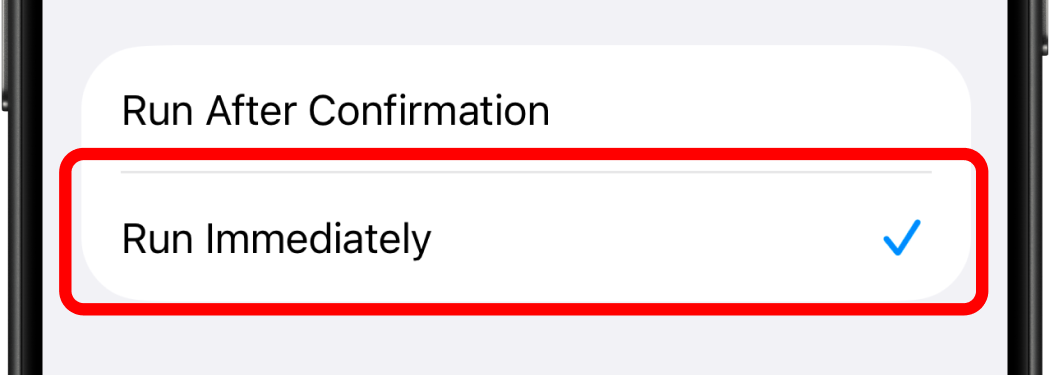
Enable Run Immediately to skip confirmation for each forward
Step 4: Add Forward SMS Action
-
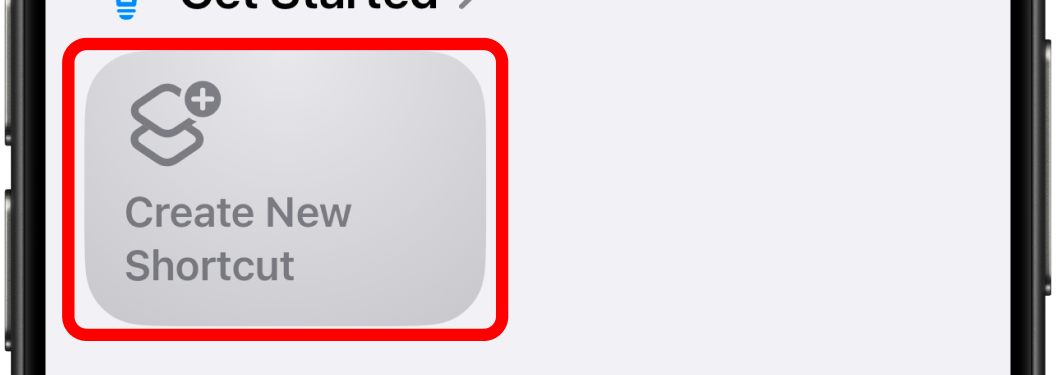
Tap New Blank Automation
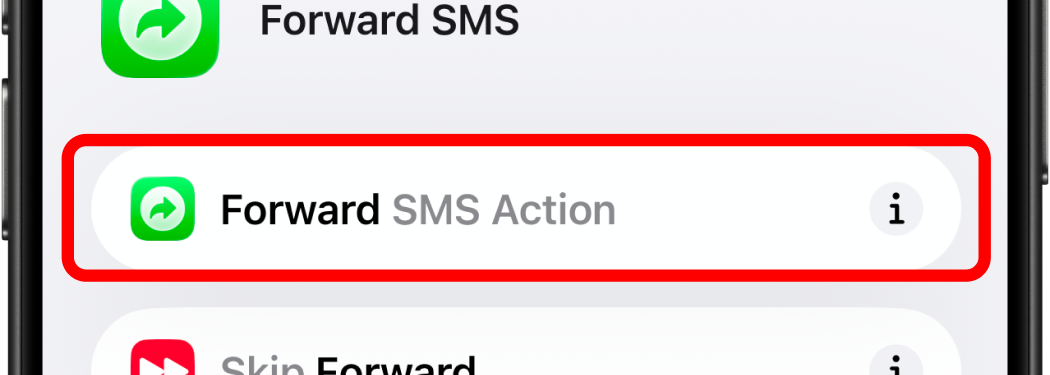
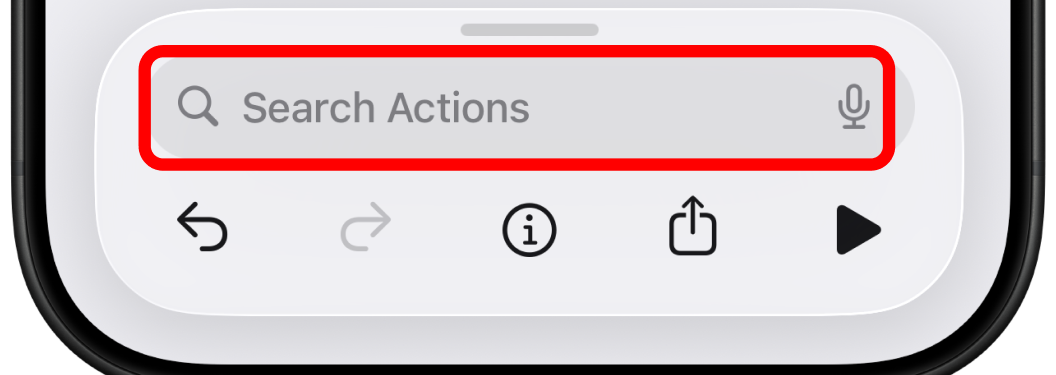
- Search for Forward SMS
-
Tap Forward SMS Action
Step 5: Configure Message Field
-
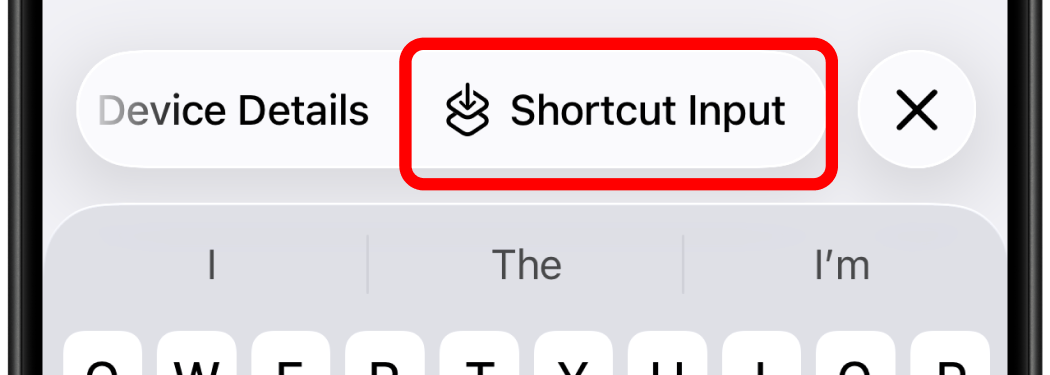
Tap Message field
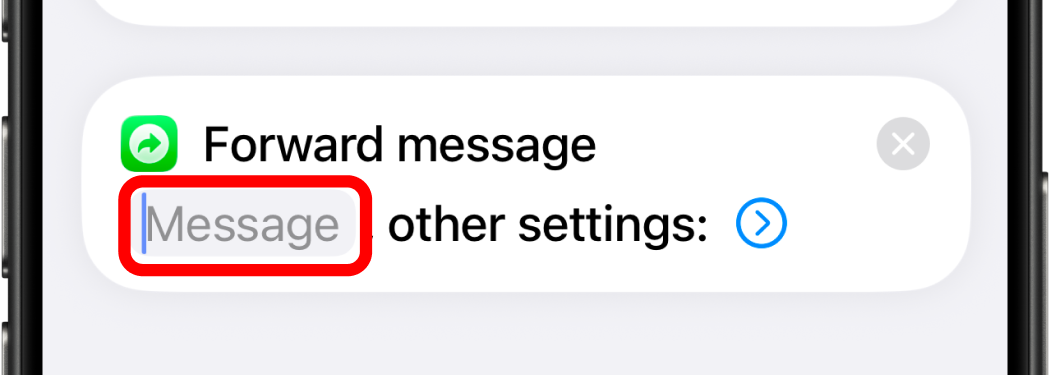
- Scroll toolbar above the keyboard
-
Select Shortcut Input
Step 6: Forward to Phone (Optional)
Only if you have rules for forwarding to Phone
-
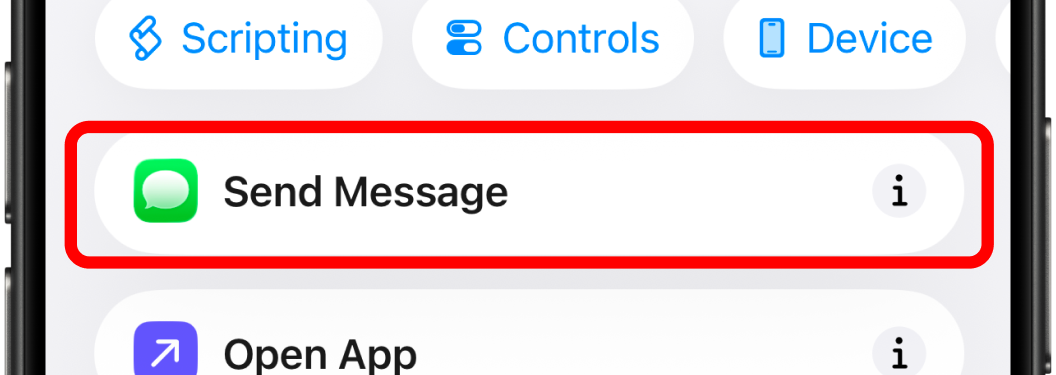
Add action Send Message
-
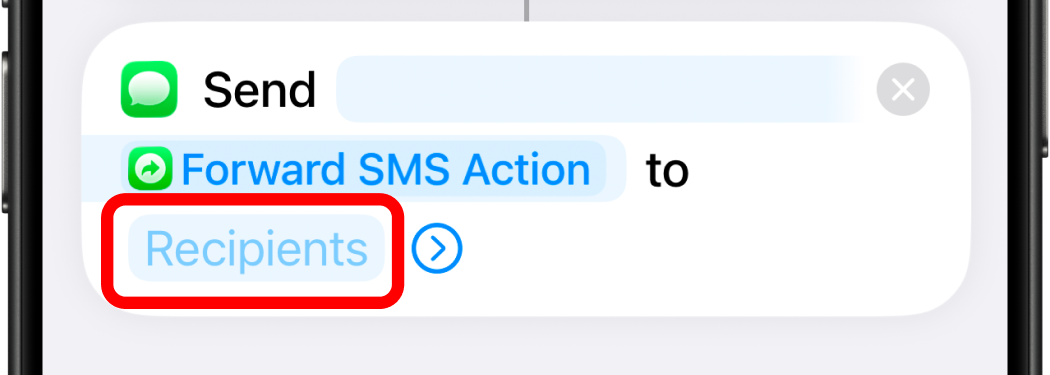
Enter recipient's phone number
Step 7: Forward to WhatsApp (Optional)
Only if you have rules for forwarding to WhatsApp
-
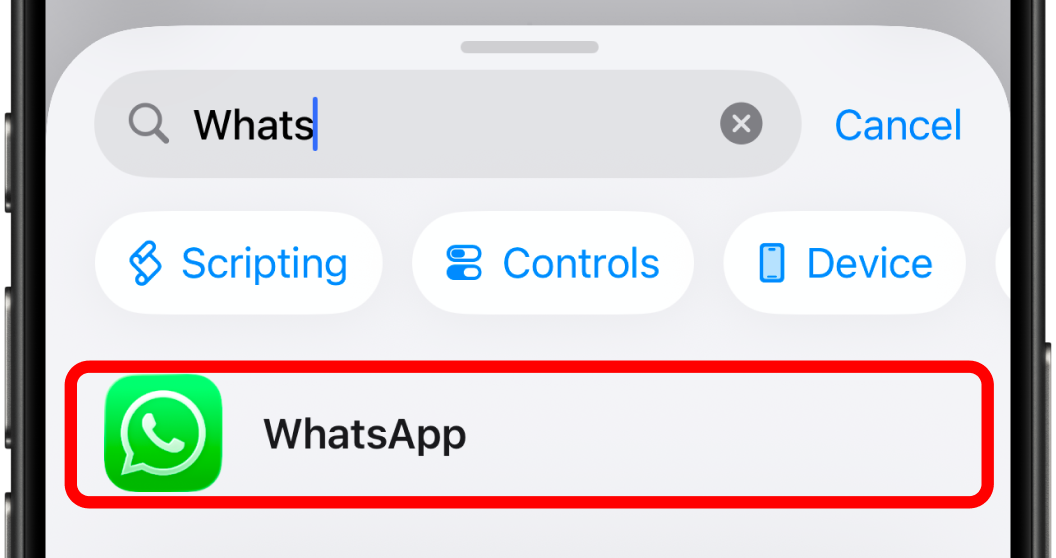
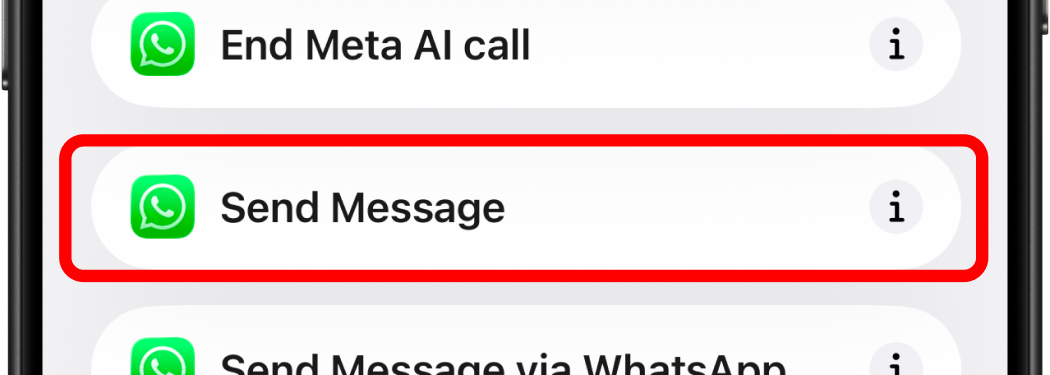
Search for WhatsApp. Add action Send Message
-
Enter recipient's phone number
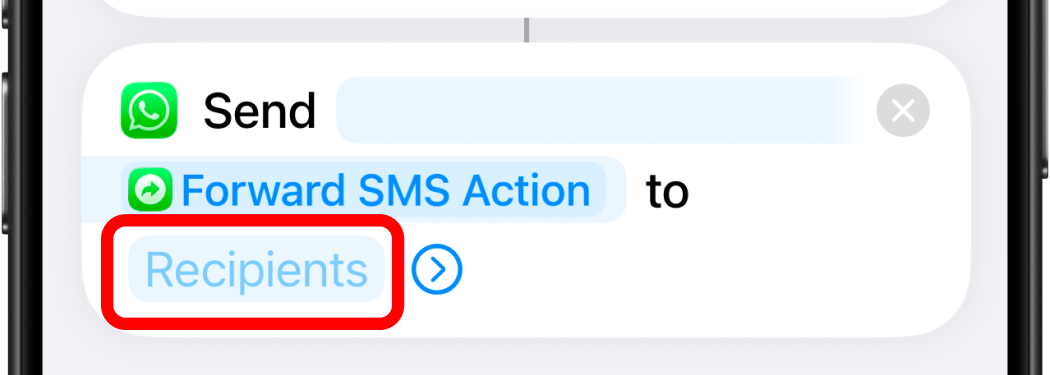
Almost done! Now let's configure the sender information so you know who sent the original message.
Step 8: Configure Sender Variable
-
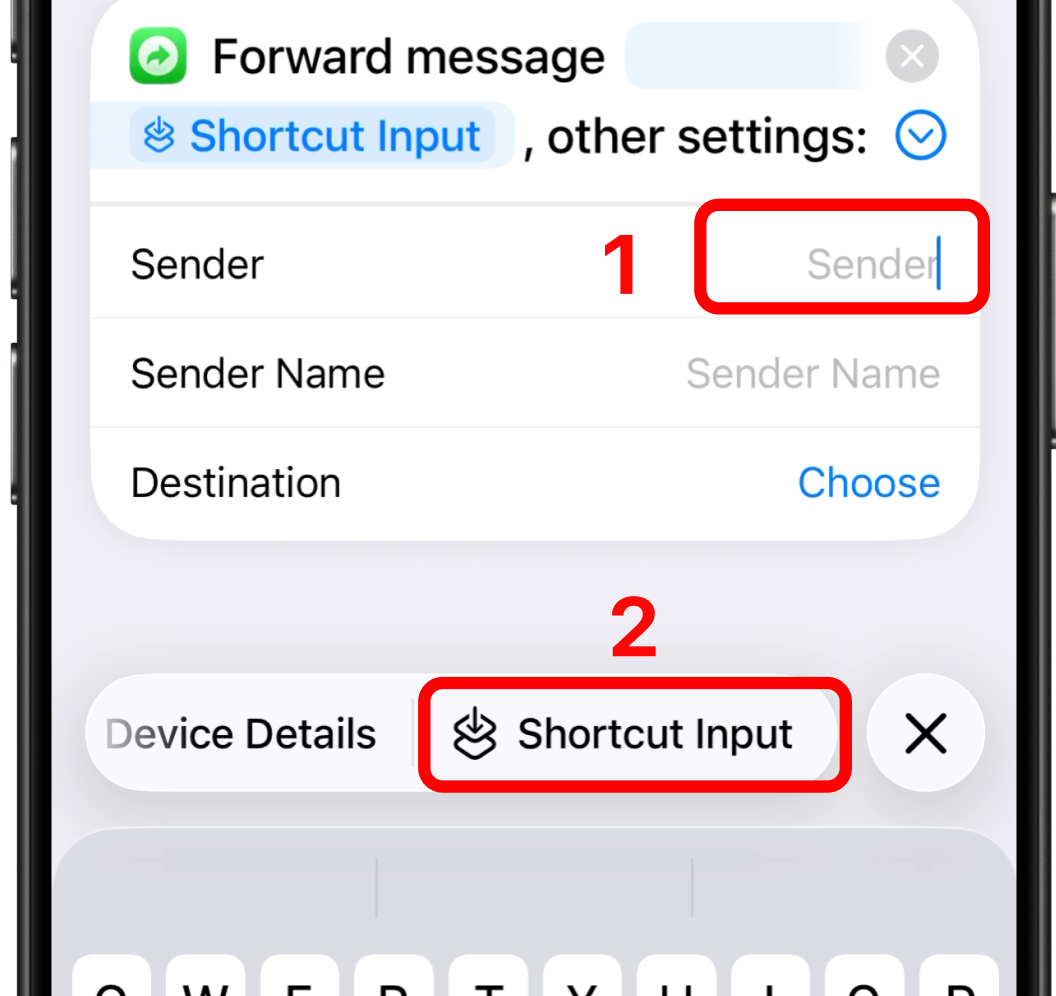
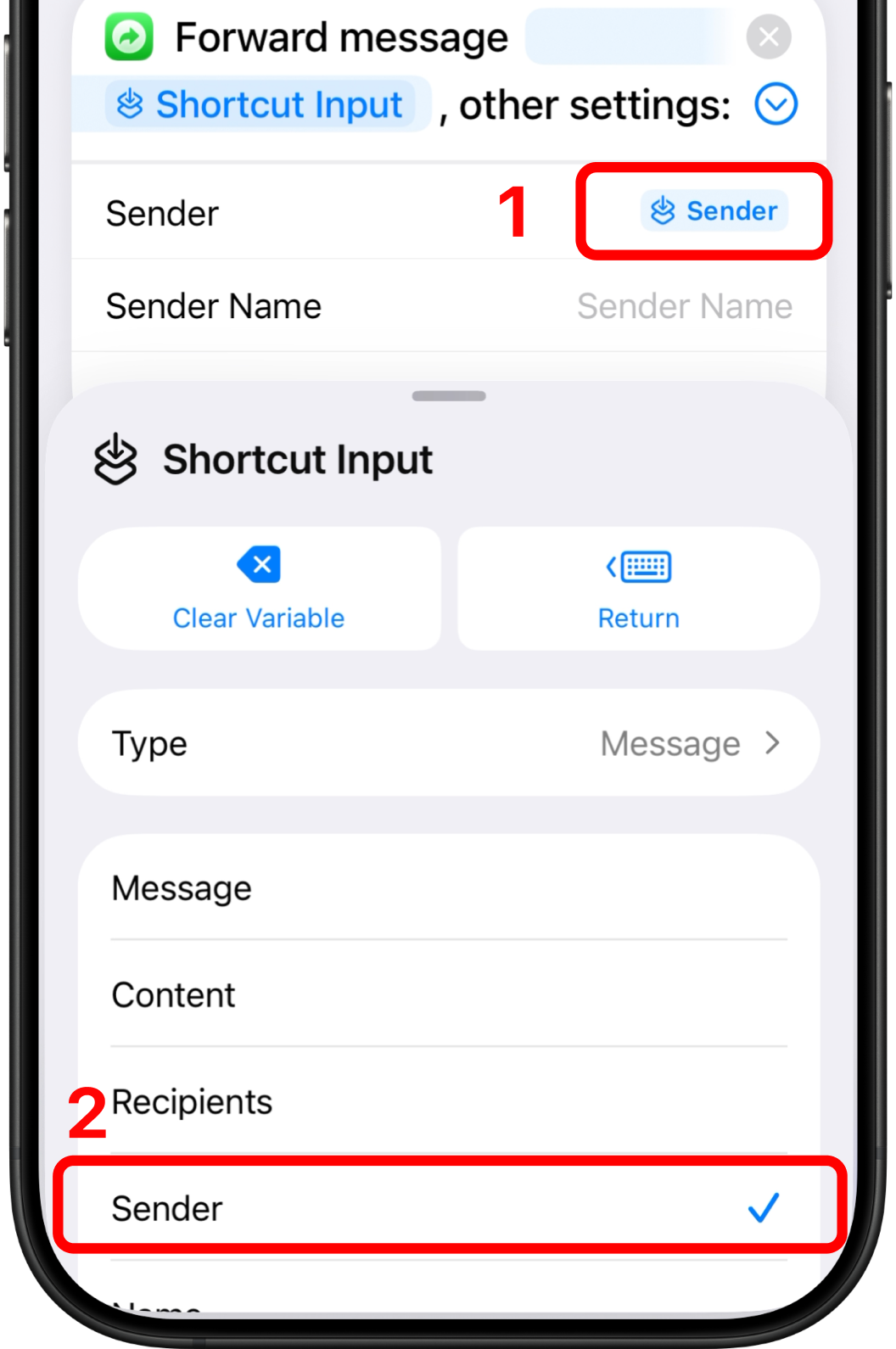
Assign Sender → Variables → Shortcut Input. Scroll toolbar above the keyboard
-
Tap Sender's Shortcut Input. Choose Sender from the list
Step 9: Configure Sender Name Variable
-
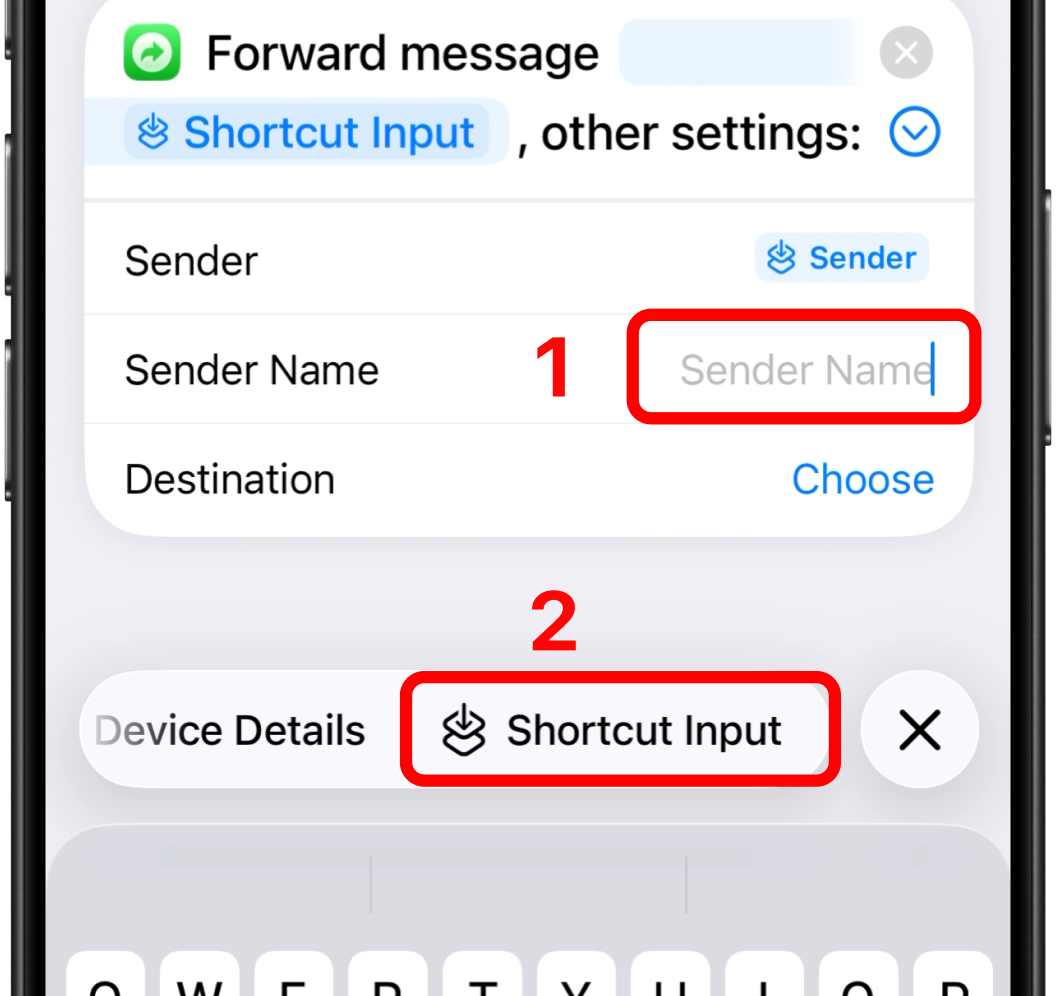
Assign the Sender Name → Variables → Shortcut Input. Scroll toolbar above the keyboard
-
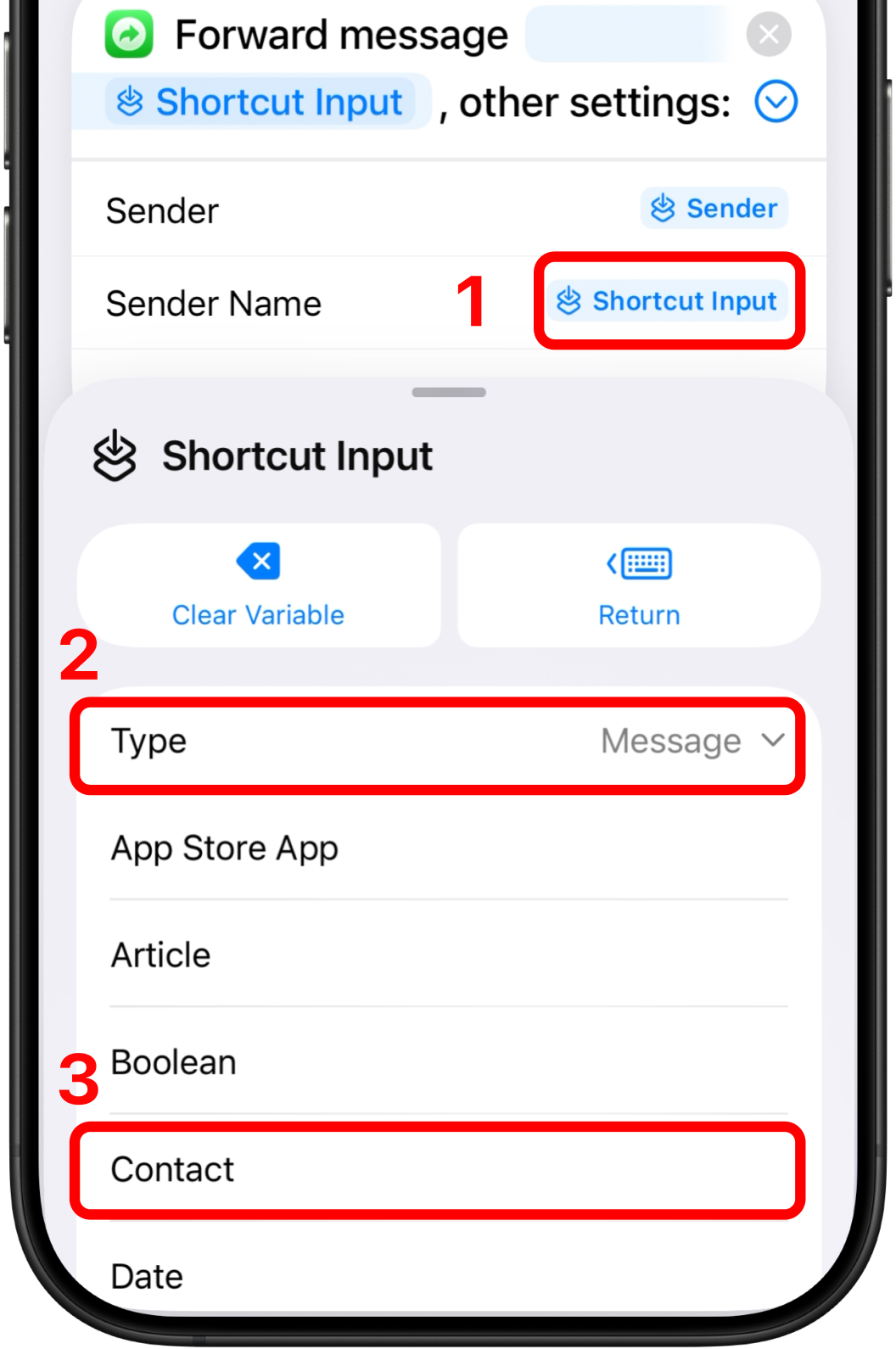
Tap Sender Name Shortcut Input. Set Type to Contact
🎉
Setup Complete!
Your SMS forwarding automation is now ready to use.
Additional Setup Guides
Set up where you'd like your messages to be forwarded: